![abtrace-logo-colour@2x-3.png]](https://help.abtrace.co/hs-fs/hubfs/abtrace-logo-colour@2x-3.png?width=124&height=60&name=abtrace-logo-colour@2x-3.png)
- Log in to the portal. Go to the User Management Portal and log in with your credentials.
- Find the Downloads section on the right-hand side of the screen.
You'll see two installers, choose the one that matches your clinical system: EMIS or SystmOne.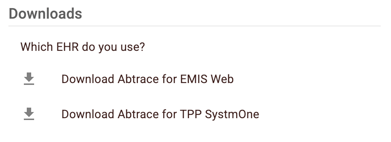
- Download the installer. Click the correct installer, then click Save and wait for the download to finish.
- Run the installer. Once the download completes, launch it (you'll also find it in your Downloads folder). The tool installs automatically.
- Finish. When you see the confirmation window, you're done. Log in to the tool using the same credentials as you did to log into the Abtrace User Management Portal.
If you'd prefer to deploy the Abtrace Proactive Monitoring Tool across your practice rather than having each user install it individually, your IT team can install the software centrally.
Through the MSI
This method is particularly useful when you want to roll out the software across the whole practice.
When the practice decides to roll out the software from a central location, we share an MSI file with the practice (MSIs can be rolled out through most MDMs such as Intune)
The MSI itself installs the Launcher in the c:\ drive.
The Launcher is a tiny piece of software that runs on start-up and either
- Installs the latest Abtrace Proactive Monitoring tool for that user if it is not installed or
- starts the tool if it is already installed.
The installer is Launcher is installed in C:\Program Files (x86)\Abtrace\Proactive Monitoring Launcher
Installing a software on C:\Program Files (x86)\ often requires administrative privileges.
Switch
If you are looking to install the Abtrace Proactive Monitoring tool via the launcher, you can use the following switch to select the TPP version of the tool:
& .\ProactiveMonitoringLauncher-0.2.0.msi /passive EHRSELECTION=tpp