![abtrace-logo-colour@2x-3.png]](https://help.abtrace.co/hs-fs/hubfs/abtrace-logo-colour@2x-3.png?width=124&height=60&name=abtrace-logo-colour@2x-3.png)
Want more information? You can skip to:
Auto-sync feature on Patient View
Task Status Explained: When Do They Change?
What are the tick boxes next to the blood test recommendations?
What is the difference between 'QOF Register' and 'Condition Review'?
What is the Difference between a 'Medication Review' and 'Prescribing Review'?
Auto-sync feature on Patient View
With Auto-sync toggled on, the Patient View will automatically update to match the patient currently open in EMIS or SystmOne.
⚙️ How it works
- In Patient View, you’ll see an Auto-sync toggle.
- When turned ON, the Proactive Monitoring Tool will automatically sync to the patient open in EMIS or SystmOne.
Real-time status bar
Always know what’s happening between your clinical system and Proactive Monitoring Tool:
- 🟩 Green: This patient is open in EMIS/SystmOne
- 🟥 Red: A different patient is open in EMIS/SystmOne
Your Auto-sync toggle preference is for your Proactive Monitoring Tool login only


🛑 Mid-data entry safeguards
If you’re entering data and switch patients in EMIS/SystmOne, you’ll get a prompt:
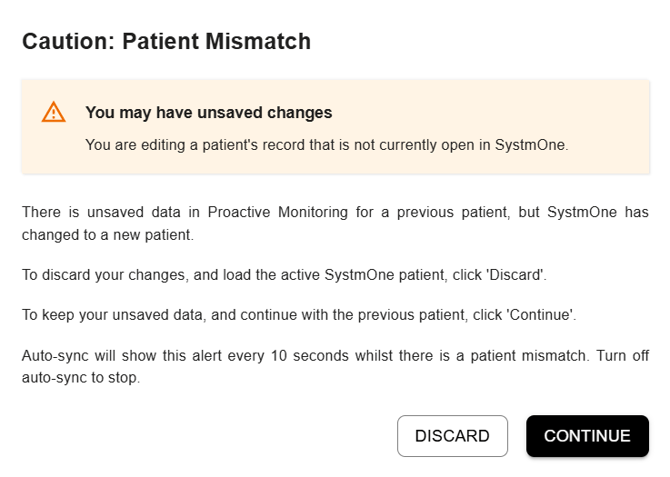
You can then choose to:
- Remain and continue editing
- Discard data and switch
If you choose to remain, this prompt will reappear every 10 seconds indicating the mismatch.
🧠 Safety features
- If you open Patient View via the Population View, Auto-sync will automatically toggle OFF — this is a safety measure to avoid unintentional syncing when reviewing population-level data.
- You can manually turn Auto-sync off at any time if you prefer full control.
✅ Why this matters
Auto-sync is built to:
- Minimise patient safety risks – reducing the chance of editing the wrong patient’s data.
- Save time – fewer clicks, smoother workflow.
- Match user expectations – we've built this based on feedback from our users.
“I can be changing the patient in the EHR and not realise the patient shown in PMT is different” – feedback like this helped shape the feature.
Task Status Explained: When Do They Change?
Quick guide:
🟢 Green = Complete
🟠 Amber = Opportunistic (due soon - a good time to do it!)
🔴 Red = Overdue (needs attention!)
When do tasks change status?
🌍 QOF & Financial Year Rules
- Start of the financial year (1st April): Tasks turn Amber – time to start thinking about them!
- Annual tasks: If not done within a year, they turn Red – overdue alert! 🚨
💡Use the Days Overdue filter to limit recall invitations. (Example: Set -28 to Max if you only want to invite patients whose task will become due in the next 28 days.)
🩺 Other Rules (CQC, Meds Monitoring)
- Yearly checks: Amber at 6 months.
- Every 6 months: Amber at 3 months.
- Every 3 months: Amber at 2 months.
📋 Registers
- Example: Frailty Register, Housebound, Palliative Care
- Always green ✅
💊 Medication Reviews & Some Recommended Tasks
- These are opportunistic only – they never turn red.
Includes:
-
- Medication reviews
- Some blood tests (e.g., Theophylline, Nitrofurantoin LFTs)
🌡️ Flu & COVID
Click here to learn more about when flu and covid turn opportunistic.
👶 Childhood Immunisations
Click here to learn more about when childhood immunisation turn opportunistic.
💉 Vaccinations
- HPV, Pneumococcal, Shingles, RSV: Turn Red as soon as the patient is eligible.
What are the tick boxes next to the blood test recommendations?
At the point of taking bloods or when a blood test is requested, we recommend selecting the appropriate tick boxes in the Patient view and clicking Save to indicate that the relevant blood test requirements are in progress.
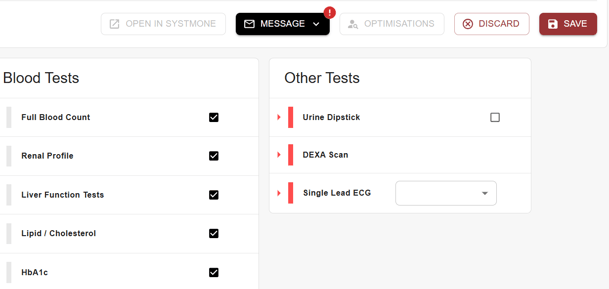
Once you click Save, the following code will also be added to the clinical system: 37331000000100 Comment note (record artifact)
This records that action has been taken against the recommendation and helps alert other members of the practice team that the blood tests have been requested or taken.
Upon ticking and saving:
- The status of the bloods will remain grey for up to 14 days.
- The grey status indicates that bloods have been requested or taken and are awaiting results.
- If coded blood test results are received within this 14-day period, the status will automatically update to green following the next data refresh.
- If no coded blood test results are received within 14 days, the status will revert to its previous colour (for example, red or orange).
You will see that the Patient View shows different suggestions and sometimes different statuses for QOF registers and QOF Condition Review.
Part of QOF requirements are about keeping appropriate registers, and part of it is about completing actions (e.g. condition reviews).
QOF Register shows a patient's status on QOF registers compared to the registers that Abtrace believes that the patient should be on. For example, if a patient is listed as 'green' for the COPD QOF Register, this means that you have correctly identified that the patient has COPD.
Condition Review is listed as part of Disease Care, and this shows whether the appropriate QOF review has been completed.
You can therefore have a situation where a patient is listed as green for QOF COPD Register (i.e. we have them on the register) but red for their condition review (i.e. we have not yet done the action that is needed for patients on that register, in this case, a condition review).
You can find patients who may be missing from QOF registers in the Abtrace Optimisation tab.
Medication Review:
Some medications require a medication review to be completed periodically. These are coded according to SPS, CQC or local rule requirements to ensure prescribing the medication is still safe and appropriate.
Prescribing Review:
This is suggested when something may need to be actioned by a prescriber. This could be because a drug may need to be added. Examples include a statin for patients with a QRISK2 >10%, or ACEi or ARB for patients with a code for Left Ventricular Systolic Dysfunction. Prescribing reviews will also be suggested when there is a concern regarding contraindications, for example patients prescribed a DOAC but with a creatinine clearance <30.
NB:
By default, EMIS requires an annual 'medication review' in the Prescribing tab, regardless of which medications are prescribed. Currently, the Abtrace tool only triggers a review based on national (or local) requirements, and will not flag for simple medications like emollients, that do not require a review according to the national rules.
✅ What Are Target Tasks?
Target tasks help you identify patients who may need further clinical attention because something is out of target. This proactive approach reduces clinical risk and supports better patient outcomes.
These targets are aligned with the national standards set in the QOF contract, so using them effectively can also help improve your QOF performance💡
📌 Where to find Target tasks
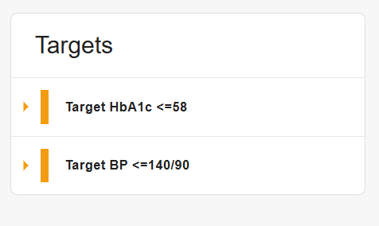
In the Patient View within the Proactive Monitoring Tool, under Targets, you will see the clinical targets displayed (see example below). These include BP, HbA1c and LDL cholesterol targets.
🔍 Understanding Task Status
Target tasks use a different status system compared to other tasks in the Proactive Monitoring Tool:
🟢 Complete (Green):
✅ Target achieved and completed this financial year 🎉
🟠 Opportunistic (Orange):
⚠️ Last result was at target, but not yet done this financial year.
(Days overdue shows time remaining until year-end.)
🔴 Overdue (Red):
❗ Last result was off target.
(Days overdue shows how long ago the off-target result was recorded.)
🛠 How to Use Target Tasks Within Population View
The 🔴 Overdue group is the most important to focus on, as these patients are off target and likely need clinical intervention.
- Go to Population View.
- Use the Task Filter on the left-hand side.
- Select Target and choose the target you want to filter against.
- Apply Overdue Only to see patients whose last result was off target.
- Use Days Overdue to refine by time since last result.
👉 Example: Find patients with HbA1c out of target for more than 3 months and invite them for a repeat test or medication review.
📣 Recall Example
Identifying patients who have had their Blood Pressure checked this financial year but are out of target.
- Go to Advanced Search.
- Add criteria:
- Target BP ≤ 140/80 and 150/90, Task Status = Overdue 🔴
- Add another criterion:
- Blood Pressure, Task Status = Complete 🟢
- Add any exclusions as needed.
- Create a Recall for these patients and invite them for a review.