![abtrace-logo-colour@2x-3.png]](https://help.abtrace.co/hs-fs/hubfs/abtrace-logo-colour@2x-3.png?width=124&height=60&name=abtrace-logo-colour@2x-3.png)
Welcome to the Abtrace Proactive Monitoring Tool! This guide takes you through everything you need to get up and running, from creating your account to installing the tool.
👇To get started, watch the Quick Start Video below, work through the sections in order, or jump straight to what you need using the links below
▶️ Quick Start Video
👤Create & Verify Your Account
1. Head to the User Management Portal. Once here, click Register at the bottom, fill in your details and click Register again to prompt verification.
You need to use an @nhs.net email address to create your account.
2. Verify your account ✅
After registering, open the verification email in your inbox and follow the link to confirm your email address. Once verified, you can log in to the portal with the credentials you've just created.
You will not be able to login to your new account until you verify your email address. Please check your inbox for a verification email.
🏢Join Your Organisation
There are two ways to join your practice's organisation on Abtrace: accept an invitation sent to you, or request to join yourself.
Accept an invitation
If you've received an email inviting you to the organisation 🎉, follow these steps:
- If you don't already have an account, create one and verify your email first. If you already have an account, skip this step.
- Log in to the User Management Portal.
- You'll see a red box with your invite in the top-right of the screen. Click it to accept.
- Log out and back in (click your initials in the top-right then click Log out). Your organisation will now show in your profile when you log back in.
Request to join
If you haven't been invited, you can request to join instead:
- If you don't already have an account, create one and verify your email first. If you already have an account, skip this step.
- Log in to the User Management Portal.
- Go to the Applications tab at the top of the page and click Join new Organisation, or click on the Home Tab at the top of the page, then click the small + in the red circle in the Pending Applications section on the top right
- Enter your practice's name or ODS code in the pop-up.
- Wait for your practice admin to approve your request. You'll be notified by email.
Once approved, your organisation details will appear on the left-hand side the next time you log in to the User Management Portal.
💻Download & Install the Tool
- Log in to the portal. Go to the User Management Portal and log in with your credentials.
- Find the Downloads section on the right-hand side of the screen.
You'll see two installers, choose the one that matches your clinical system: EMIS or SystmOne.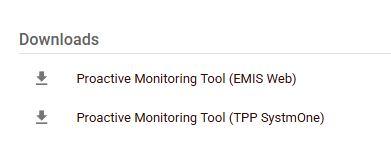
- Download the installer. Click the correct installer, then click Save and wait for the download to finish.
- Run the installer. Once the download completes, launch it (you'll also find it in your Downloads folder). The tool installs automatically.
- Finish. When you see the confirmation window, you're done. Log in to the tool using the same credentials as you did to log into the Abtrace User Management Portal.
You'll find a shortcut to the tool on your Start Menu and desktop. 🎉For even quicker access, right-click the app and select Pin to taskbar.
✅ No admin privileges are required to install the tool this way.
Once your account is set up and the tool is installed, you're ready to go.
To get the most out of Abtrace, join our free live group training sessions below.
Central Deployment (IT / MSI)
Central deployment is also an option if you'd prefer not to install the Proactive Monitoring Tool on each device individually. Your IT team can deploy it across the practice using an MSI installer provided by Abtrace.
💻Book Your Training
Proactive Monitoring Tool Overview 🧑🏼⚕️
Who is it for? All staff are encouraged to attend.
What's covered? An overview of the User Management Portal and the Proactive Monitoring Tool, including:
- 📋 User Management Portal — configure Abtrace for your practice and manage user access, Automated Recalls, and the Patient Portal.
- 👤 Patient View — a simple, actionable to-do list so you can make every contact count.
- 👥 Population View — run basic and complex searches instantly, send bulk messages, and set up custom Automated Recalls.
- 🔍 Optimisation View — our case-finding tool to make sure patients get the right care and your practice is compensated for it.
👉 Register for Get Started Team Training
Automated Recall Team Training ☎️
Who is it for? Anyone involved in recalling patients.
What's covered? An in-depth walk-through of creating and configuring automated recalls, plus the related reports and analytics:
- 🖥️ How to create a simple recall vs a complex two-step recall.
- ❓ Using questionnaires in your recall workflow.
- 📞 Finding your non-responders and DNAs.
👉 Register for Recall Team Training
Would like a practice-wide session instead? Email support@abtrace.co
Experiencing an issue?
Check Troubleshooting for solutions to common problems or contact us via the Portal and select Support Ticket.