![abtrace-logo-colour@2x-3.png]](https://help.abtrace.co/hs-fs/hubfs/abtrace-logo-colour@2x-3.png?width=124&height=60&name=abtrace-logo-colour@2x-3.png)
Beta feature: The Inbox is currently being tested by a small number of practices and will be rolled out to all practices in due course.
The Inbox in Abtrace Web is where you can review patient questionnaire responses and save them directly to the patient record.
With the Inbox, you can:
- Approve and write to the record in one click
- See all outstanding responses in one list – sorted oldest first, so anything nearing the 28-day limit is always at the top
- Focus on one questionnaire type at a time – useful when different team members review different questionnaires
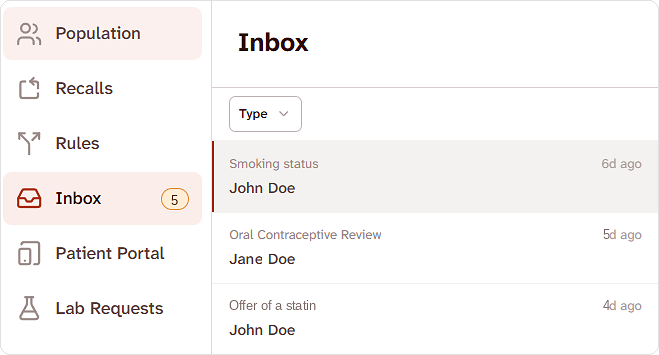
- Track what's left – a counter in the side menu shows how many responses still need reviewing
Before you start
- You'll need to be an Abtrace admin user. For now, only admin users can open the Inbox.
- Questionnaires need to be switched on. Responses only appear in the Inbox for questionnaires you've enabled in the Patient Portal. See What is the Patient Portal? to set them up.
Jump to:
- Opening the Inbox
- Approving a response
- Discarding a response
- Filtering by questionnaire type
- Can’t approve or discard a response?
Opening the Inbox
- Log in to Abtrace Web.
- Select Inbox in the left-hand menu. The number next to it shows how many responses are still waiting to be approved or discarded.
- Your responses are listed with the oldest at the top. Each item shows the questionnaire type, the patient's name and when the response was received.
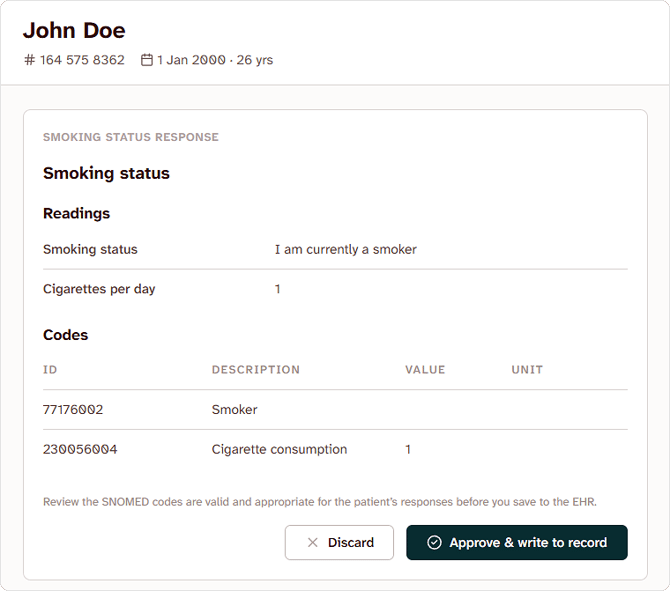
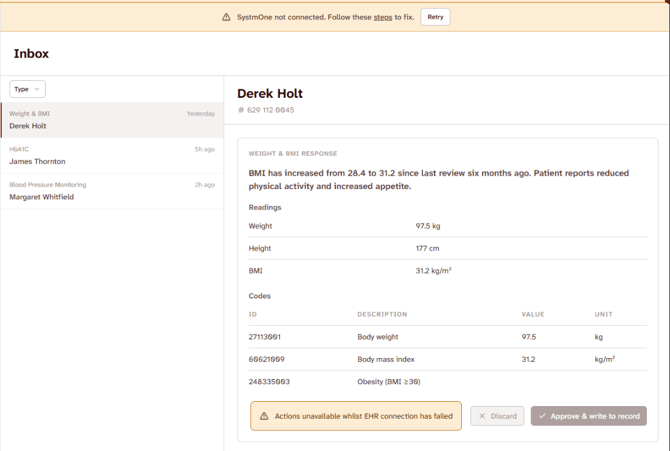
- Select a response to open it. You'll see:
- the patient's name, NHS number and date of birth
- their answers to the questionnaire (Readings)
- the SNOMED codes, values and units that will be written to their record if you approve it
Approving a response
You have 28 days to action each response. After 28 days, a response is removed from the Inbox.
- Check the patient's answers and the associated codes.
- Select Approve & write to record.
- A green message confirms the response has been approved and written to the record.
- You're taken straight to the next response in your Inbox.
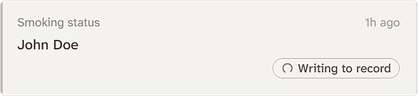
⏳ Note: Approving & writing to the record can sometimes take a little longer. If it does, you'll see a Writing to record label on that item in the list. There’s no need to wait: you’ll be taken to the next response within a few seconds while it finishes saving in the background.
Discarding a response
If a response shouldn't be added to the patient's record, you can discard it.
- Select Discard.
- In the box that appears, select Discard again to confirm, or Cancel to go back.
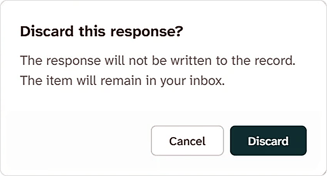
A discarded response isn't written to the patient record. It stays in your Inbox but no longer counts towards the number of responses waiting.
Filtering by questionnaire type
- Select Type above the list of responses.
- Tick the questionnaire types you want to see. The number next to each type shows how many responses are waiting.
- Your filter shows as a tag above the list, for example Type: Smoking status. Select the × on the tag to clear it.
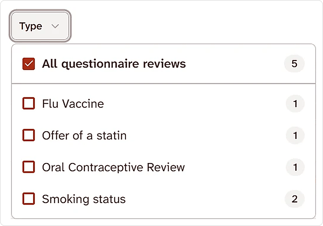
💡 Tip: If different team members look after different questionnaires, each person can filter to their own types and work through just those.
Can’t approve or discard a response?
You can only approve or discard a response while Abtrace is connected to your clinical system.
SystmOne practices
If Abtrace detects that SystmOne isn't connected, a yellow banner appears at the top of the Inbox and the Approve & write to record and Discard buttons are greyed out.
To reconnect, follow these steps then select Retry or reload the page. The buttons will work again once SystmOne is connected.
EMIS Web practices
Abtrace can't check your EMIS Web connection in advance, so make sure EMIS Web is open and connected before you start.
Still having trouble?
Abtrace needs to be connected to your clinical system. If this hasn't been set up yet, follow our EMIS setup or SystmOne setup guides.