![abtrace-logo-colour@2x-3.png]](https://help.abtrace.co/hs-fs/hubfs/abtrace-logo-colour@2x-3.png?width=124&height=60&name=abtrace-logo-colour@2x-3.png)
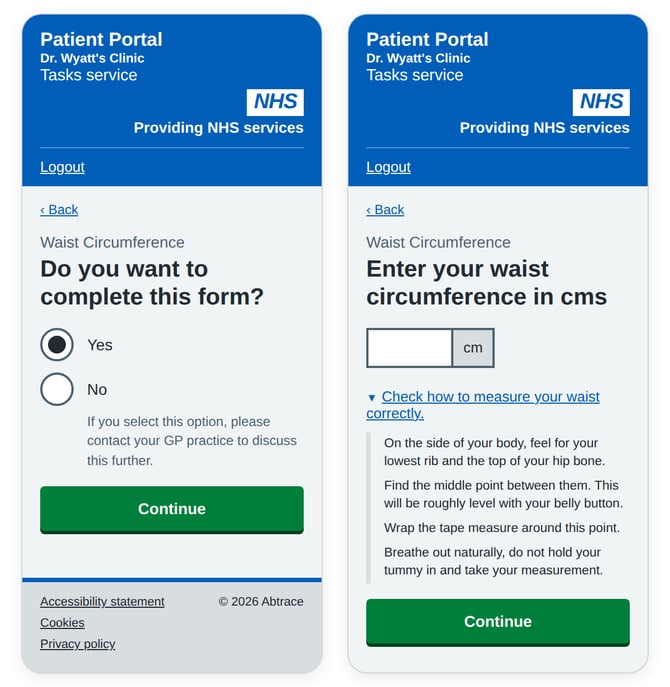
📋SNOMED codes saved to EHR
- Waist circumference (observable entity) - 276361009
- Decline (for EMIS) Measurement of waist circumference declined (situation) - 698484006
- Decline (for S1) Waist measurement declined (situation) - 523861000000109
⚙️ Associated Monitoring Rules
To use the Waist Circumference questionnaire, first enable the monitoring rules that identify which patients need their waist circumference recorded. Then switch on the questionnaire in the Patient Portal.
Part 1: Enable the monitoring rules
- Open the User Management Portal.
- In the left-hand panel, click Rules.
- Search for “Waist circumference”.
- ✅ Enable the rules for the patients whose waist circumference you’d like to monitor.
Part 2: Activate the questionnaire
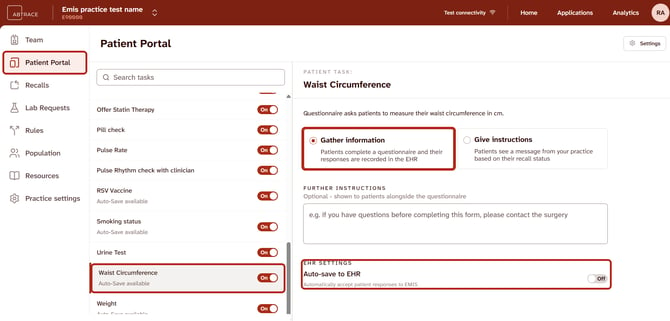
- In the left-hand panel, click Patient Portal.
- Find the Waist Circumference task by scrolling or using Search tasks. Check that its toggle is set to On, then click the task to open its settings.
- Select Gather information to surface this questionnaire for eligible patients.
- Optional: Under EHR settings, turn on Auto-save to EHR if you want patient responses to be auto accepted and coded into your EHR automatically.
❓ Want to Understand How Questionnaires Work?
If you're looking to understand how Questionnaires operate more generally, check this help article.