![abtrace-logo-colour@2x-3.png]](https://help.abtrace.co/hs-fs/hubfs/abtrace-logo-colour@2x-3.png?width=124&height=60&name=abtrace-logo-colour@2x-3.png)
To ensure the Proactive Monitoring Tool always has the latest patient information, data is extracted from your practice and ingested into the tool every day using SystmOne's Strategic Reporting function.
Before your pipeline setup call with Abtrace, please complete the three steps below:
Choose the right computer
Check your organisation is part of a Strategic Reporting Organisational Group
Check the setup user has the right permissions
1) Choose the right computer
- This needs to be a PC that is logged into daily and that you're happy to have both SystmOne and the Proactive Monitoring Tool running on.
- Make sure you join your first call from this computer.
2) Check your organisation is part of a Strategic Reporting Organisational Group
- In the Search features (search bar in SystmOne), type in the word 'strategic'.
- Select the
Strategic Reporting Download Configurationsfield. - In the
strategic reporting groupdrop-down menu, look for any organisations.
If you can see an organisation, you're all set 🎉
⚠️ If you cannot see an organisation, please follow the instructions below.
Creating a Strategic Reporting Organisational Group
Go to Setup > Organisation Groups and navigate to a logical location, for example:
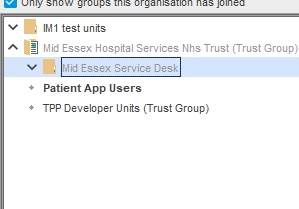
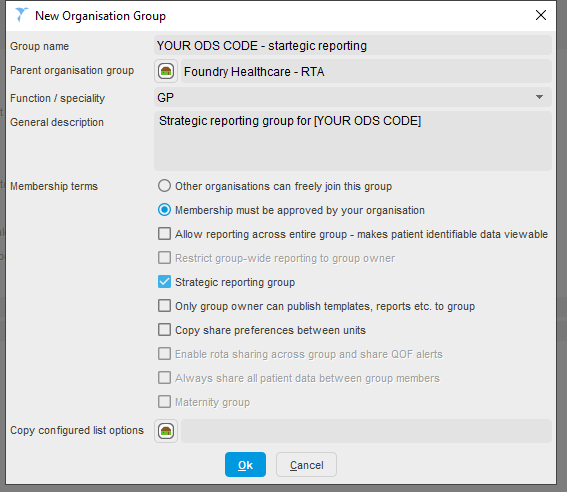
Click New Group (top right) and fill in the pop-up as follows:
| Field | Value |
|---|---|
| Group name | YOUR ODS CODE - strategic reporting |
| Parent organisation group | Navigate to the appropriate folder |
| Function / speciality | GP |
| General description | Strategic reporting group for [YOUR ODS CODE] |
Tick both 'Membership must be approved by your organisation' and 'Strategic reporting group', then click OK > OK > Cancel.
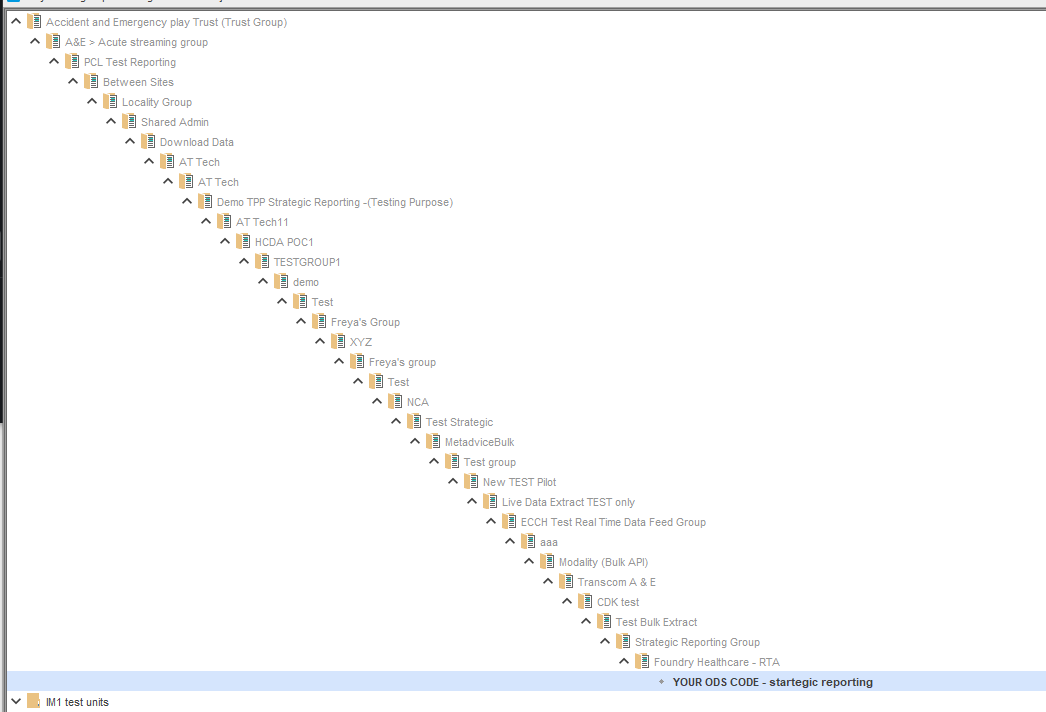
Take a screenshot of where the group is located - this helps TPP find it quickly.
Emailing TPP
Once the group is created, email TPP to request activation using the template below:
To: SystmOneSetup@tpp-uk.com
Subject: Strategic Reporting activation for [ODS CODE]Dear TPP setup team,
[PRACTICE NAME] ([ODS CODE]) is not part of any strategic reporting organisational group. I understand we need to contact you to enable scheduling extracts.
Name of SR Organisational Group: [GROUP NAME]
Organisation ID: [ODS CODE]Could this be enabled please?
Many thanks,
3) Check the setup user has the right permissions
The setup user must have both Job Scheduling and Strategic Reporting rights
How do I check if the SystmOne setup user has Job Scheduling rights?
JobScheduled Jobs from the list+ icon in the top-left corner.✅ If no error message appears, you have Job scheduling rights 🎉
📽️ A step-by-step guide is available below:
⚠️ If you see an error message when trying to access Scheduled Jobs, you may not have the required permissions.
Please contact your Practice Manager to update your access rights using the steps below:
- Go to Setup
- Select Users & Organisations
- Choose the user who needs access
- Tick the System Administrator checkbox
How do I check if the SystmOne setup user has Strategic Reporting rights?
To check if your user has the Strategic Reporting right, head over to SystmOne.
- Click on 'Setup'
- Click on 'Staff and organisational setup'
- Find your user
- Click 'Amend'
- Select the 'Local access rights' tab
- Go to the 'Data gathering' section
- Check that the
Download strategic reporting extractsbox is ticked.
✅ If Download strategic reporting extracts box is ticked, you have Strategic Reporting rights 🎉
📽️ A step-by-step guide is available below:
If the user does not have the 'Download strategic reporting extracts' box ticked, please reach out to your Caldicott Guardian. They will be able to grant your user with the required permissions.