![abtrace-logo-colour@2x-3.png]](https://help.abtrace.co/hs-fs/hubfs/abtrace-logo-colour@2x-3.png?width=124&height=60&name=abtrace-logo-colour@2x-3.png)
What is the User Management Portal?
The User Management Portal is your central hub for managing users, organisation settings, and workflows in Abtrace. This is where you'll configure the tool to suit your practice, using sections like Rules Management and Patient Portal.
What you can see and do in the portal depends on your role:
- Standard users can create an account, join an organisation, and download the Abtrace tool.
- Admin users have full access to additional organisation-level settings and controls.
Getting Started
You can access the portal two ways, by either:
- Opening a web browser and heading to portal.abtrace.com
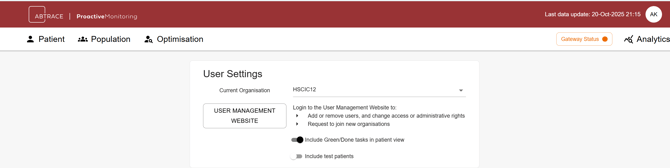
- By opening the Abtrace tool, clicking your initials in the top right corner, selecting settings, then choosing 'User Management Website' as below
Features for All Users
1. Create an Account & Join an Organisation
Sign up to get started and connect to your organisation.
There are 2 ways of joining the organisation: you can either be invited to join or make a request to join the organisation.
Access and download the Proactive Monitoring Tool desktop application onto your PC. Click through the steps in the interactive video below👇
Features for Administrator Users
If you are an admin user, you will have access to configure your organisation settings through the User Management Portal.
👥 Invite and manage users
Add team members and manage their roles so everyone has the right tools and access to get started smoothly.
📧 Manage your organisation's email addresses
Abtrace will send various email reports including failed messaging, questionnaire responses, and booking requests. If you'd prefer these notifications go to a shared inbox (e.g a practice email) rather than an individual’s, you can set up an organisation email. This ensures critical reports and submissions aren't missed by any one person.
🩺 Configure the Patient Portal
Control what patients can see and do in the Patient Portal. From here, you can enable Patient Tasks, enable questionnaires and add the practice contact details you want patients to see.
Patients can access the Patient Portal through a booking link, a questionnaire link or directly via the website. However they enter, they will see all relevant outstanding items in one place, including:
- Patient Tasks enabled by your practice
- Outstanding questionnaires
- Pending self-booking links
💬 Configure and manage your messaging
Here you can view your SMS Sender ID, choose whether to include your practice address in email signatures, decide who receives daily messaging delivery reports, configure where appointment request forms are sent when self-booking isn't available, and monitor your monthly SMS and email usage.
🔄 Manage your Automated Recall
Switch automations on or off, configure how they run, and track their progress — including run history and performance stats.
⚙️ Rules management
Tailor your patient monitoring requirements with self serve Rules Management.
When you get started with Abtrace, you'll automatically have default rules enabled. We recommend reviewing Rules Management to enable/ disable other rules to customise the tool to suit your practice.
This allows your practice to adapt to suit evolving clinical needs and local requirements—all in one place, with just a few clicks.
Ready to get started?
Log in to the User Management Portal to set up your account, manage your team, and tailor your Proactive Monitoring Tool to fit your organisation's needs.