![abtrace-logo-colour@2x-3.png]](https://help.abtrace.co/hs-fs/hubfs/abtrace-logo-colour@2x-3.png?width=124&height=60&name=abtrace-logo-colour@2x-3.png)
A quick reference for the messages you might see when using Abtrace with SystmOne. Find your message below to see what it means and how to fix it.
On this page, you can skip to:
Common checks for unexpected errors
Common checks for unexpected errors
When something isn't working as expected, the cause is often a problem with the EHR Remote Interface connection. Common examples include the gateway computer being switched off or SystmOne not running on the gateway machine.
These issues commonly present as:
- Recalls failing
- Error saving questionnaires
-
Appointments booking links failing
-
Check SystmOne is running
-
Confirm SystmOne is open on the Gateway PC. Also check this is the same instance of SystmOne that the pipeline was originally set up on - running a different instance can also trigger this error.
-
Confirm the Abtrace tool is running on the same Gateway PC.
-
-
Check the correct organisation/site is selected
-
Confirm the same organisation is selected in both SystmOne and the Tool. A mismatch here can cause unexpected errors.
-
-
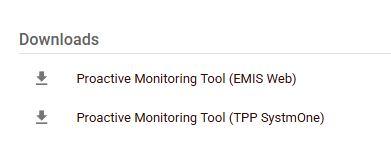
Ensure the correct Proactive Monitoring Tool is installed for your EHR (EMIS or SystmOne)
- Go to the User Management Portal and log in with your credentials.
- Find the Downloads section on the right-hand side of the screen. You'll see two installers, choose the one that matches your clinical system: EMIS or SystmOne.
- Need more help? Watch a quick video walkthrough to follow the steps.
- Check the connection has not been refused in SystmOne
If the Proactive Monitoring Tool is unable to connect to SystmOne, the required connection permissions may need to be reviewed.
See How to fix this by approving the appropriate connection permissions within SystmOne. - Check SystmOne permissions for user logged in to pipeline setup PC
- Log in to SystmOne (pipeline setup PC)
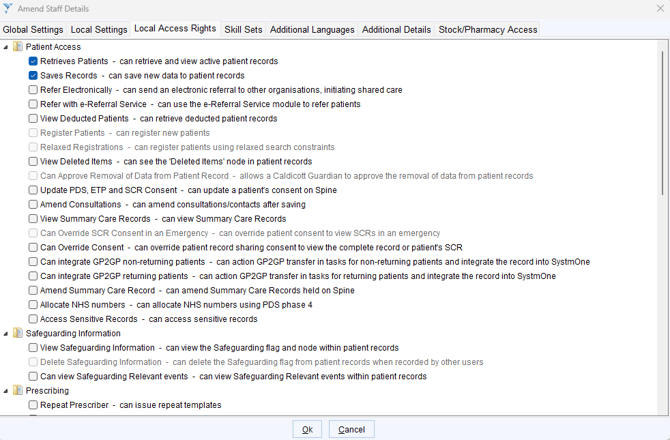
- Go to Amend Staff Details > Local Access Rights
- Confirm the user has both of the following ticked:
- Retrieves Patients
- Saves Records
Data & sync errors
"Data Status Warning" / "Data transfers are not consistent" Gateway Status showing amber or red? Last update over 48 hours ago? See the full article for what each Gateway Status means, how to fix and common causes for pipeline issues.
"Automated Recall Failures" Usually means the Proactive Monitoring Tool couldn't connect on the gateway machine when the automation ran. How to fix this
"Encryption keys" / "Patient not found" Find out more about encryption keys, where to find them and how to fix "Patient not found" error. Find out more
Status notices
These are informational and don't usually need action.
"Checking for updates" The tool is checking whether a newer version is available.
"No updates found" You have the latest version of the Proactive Monitoring Tool downloaded.
"Patient task saved successfully" Confirms the task was recorded correctly.
"Patient has no clinical task" The tool found the patient but has nothing currently due for them.
Still Having Issues?
If completing these steps does not resolve the issue, please submit a Support Ticket via our Web App. Alternatively, you can email us at support@abtrace.co.